
Mac Zsh Environment Set Up
Mac Set Up
On a Mac with Apple silicon Find out if you have a Mac with Apple silicon
- Turn on your Mac and continue to press and hold the power button as your Mac starts up.
- Release the power button when you see the startup options screen, which shows your startup disks and a gear icon labeled Options.
- From this window you can start up from a different disk, start up in safe mode, use macOS Recovery, and more. Learn more about these options.
Good reference: Make Use Of Costumize zsh prompt MacOS Terminal
1
2
3
4
5
6
7
8
9
10
11
12
13
14
15
16
17
18
19
20
21
22
23
24
25
26
27
28
29
30
31
32
33
34
35
36
37
38
39
40
41
42
43
44
45
46
47
48
49
50
51
52
53
54
55
56
57
58
59
60
61
62
63
64
65
66
67
68
69
70
export PYENV_ROOT="$HOME/.pyenv"
export PATH="$PYENV_ROOT/bin:$PATH"
export GEM_PATH="/usr/bin/gem"
eval "$(pyenv init --path)"
if command -v pyenv 1>/dev/null 2>&1; then
eval "$(pyenv init --path)"
fi
if [ $(arch) = "i386" ]; then
alias brew86="/usr/local/bin/brew"
alias pyenv86="arch -x86_64 pyenv"
fi
export NVM_DIR="$HOME/.nvm"
[ -s "/opt/homebrew/opt/nvm/nvm.sh" ] && \. "/opt/homebrew/opt/nvm/nvm.sh" # This loads nvm
[ -s "/opt/homebrew/opt/nvm/etc/bash_completion.d/nvm" ] && \. "/opt/homebrew/opt/nvm/etc/bash_completion.d/nvm" # This loads nvm bash_completion
alias ip="dig +short myip.opendns.com @resolver1.opendns.com"
alias localip="ipconfig getifaddr en0"
export CLICOLOR=1
export LSCOLORS=GxBxCxDxexegedabagaced
declare -A archs
archs=(
["arm64"]="$bg_bold[yellow]%}%{$fg_bold[black]%}m1%{$reset_color%}"
["x86_64"]="$bg_bold[red]%}%{$fg_bold[black]%}x86%{$reset_color%}"
)
arch=$(uname -m)
label=$archs[$arch]
alias brow='/usr/local/bin/brew'
alias python2='python'
print -P "You're logged in as %B%n%b on %B%M%b"
export GREP_OPTIONS='--color=auto'
export TERM="xterm-color"
PROMPT='%B%F{green}hocky%b%f ➜ '$label'%B:%F{blue}%~%f%b$ '
export PATH="$PATH:/Applications/Sublime Text.app/Contents/SharedSupport/bin"
tomp4 () {
for f in *.mkv; do ffmpeg -i "$f" -c copy "${f%.mkv}.mp4"; done
}
blaze() {
cd ~/blazegraph
java -server -Xmx4g -jar ~/blazegraph/blazegraph.jar
}
export PATH=$PATH:/Users/hocky/.spicetify
___MY_VMOPTIONS_SHELL_FILE="${HOME}/.jetbrains.vmoptions.sh"; if [ -f "${___MY_VMOPTIONS_SHELL_FILE}" ]; then . "${___MY_VMOPTIONS_SHELL_FILE}"; fi
netd () {
curl "http://$1:19999/api/v1/data?chart=apps.mem&dimension=node&after=$2&points=0&group=average>ime=0&timeout=0&format=csv&options=seconds" > mem-$3.csv
curl "http://$1:19999/api/v1/data?chart=system.ip&after=$2&points=0&group=average>ime=0&timeout=0&format=csv&options=seconds" > network-$3.csv
curl "http://$1:19999/api/v1/data?chart=apps.cpu&dimension=node&after=$2&points=0&group=average>ime=0&timeout=0&format=csv&options=seconds" > cpu-$3.csv
}
scpd () {
scp -r hocky@$1:~/peertocpnext/out/ ./$2
}
spotify() {
spicetify upgrade
spicetify auto
curl -fsSL https://raw.githubusercontent.com/spicetify/spicetify-cli/master/install.sh | sh
cd "$(dirname "$(spicetify -c)")/Themes"
git clone https://github.com/Daksh777/SpotifyNoPremium
spicetify config current_theme SpotifyNoPremium
cp "$(dirname "$(spicetify -c)")/Themes/SpotifyNoPremium/adblock.js" "$(dirname "$(spicetify -c)")/Extensions"
spicetify config extensions adblock.js
spicetify apply
}
1
2
3
4
git config --global user.name "Hocky Yudhiono"
git config --global user.email "[email protected]"
git config --global core.editor "vim"
defaults write com.apple.screencapture type jpg;killall SystemUIServer # To use jpg compressed screenshot
Save this as Hocky.terminal:
1
2
3
4
5
6
7
8
9
10
11
12
13
14
15
16
17
18
19
20
21
22
23
24
25
26
27
28
29
<?xml version="1.0" encoding="UTF-8"?>
<!DOCTYPE plist PUBLIC "-//Apple//DTD PLIST 1.0//EN" "http://www.apple.com/DTDs/PropertyList-1.0.dtd">
<plist version="1.0">
<dict>
	<key>CursorType</key>
	<integer>2</integer>
	<key>Font</key>
	<data>
	YnBsaXN0MDDUAQIDBAUGBwpYJHZlcnNpb25ZJGFyY2hpdmVyVCR0b3BYJG9iamVjdHMS
	AAGGoF8QD05TS2V5ZWRBcmNoaXZlctEICVRyb290gAGkCwwVFlUkbnVsbNQNDg8QERIT
	FFZOU1NpemVYTlNmRmxhZ3NWTlNOYW1lViRjbGFzcyNALAAAAAAAABAQgAKAA1lDb21p
	Y01vbm/SFxgZGlokY2xhc3NuYW1lWCRjbGFzc2VzVk5TRm9udKIZG1hOU09iamVjdAgR
	GiQpMjdJTFFTWF5nbnd+hY6QkpSeo663vsEAAAAAAAABAQAAAAAAAAAcAAAAAAAAAAAA
	AAAAAAAAyg==
	</data>
	<key>FontAntialias</key>
	<true/>
	<key>FontHeightSpacing</key>
	<real>1.0104573567708335</real>
	<key>FontWidthSpacing</key>
	<real>1.0417926747311825</real>
	<key>ProfileCurrentVersion</key>
	<real>2.0699999999999998</real>
	<key>name</key>
	<string>Basic</string>
	<key>type</key>
	<string>Window Settings</string>
</dict>
</plist>
First of all, install the XCode Command Line Tools by trying the git command in the terminal, it should redirect you to install the XCode thing. IN my university, everything is blocked, even you can’t ssh with github with the default setting, because they block certain egress ports related to ssh.
Easily, you can install any vpn brand, I personally use nordvpn, even though they blocked the website itself, it can be downloaded through Apple’s App Store,
Then, get:
- Zoom
- Chrome
- Git
- Your SSH private key
- VLC or IINA video player
- Typora
../assets/images/${filename}.assetsas image default folder for blogs - IntelliJ Idea Ultimate
- Sublime Text 4
- Discord
- Brew
- NVM
- WhatsApp (App Store)
- LINE (App Store)
- BlackHole 2CH (For recording output)
- Adobe Acrobat DC
- Adobe Photoshop
- Adobe Premiere
- Handbrake
- Aegisub
- XnViewMP
- VLC
- Duet
Set up your terminal by getting the ComicMono font, setting up the ~/.zshrc and the ~/.vimrc, also you can change the cursor of your mac by going to its terminal profile.
1
2
3
4
5
6
7
8
9
10
11
12
13
14
15
16
17
18
19
20
21
22
23
24
25
26
27
28
29
30
31
set number              " show line numbers
set wrap                " wrap lines
set encoding=utf-8      " set encoding to UTF-8 (default was "latin1")
set showmatch           " highlight matching parentheses / brackets [{()}]
set lazyredraw          " redraw screen only when we need to
set ruler               " show line and column number of the cursor on right side of statusline
syntax enable

filetype plugin indent on


"""" Tab settings

set tabstop=4           " width that a <TAB> character displays as
set expandtab           " convert <TAB> key-presses to spaces
set shiftwidth=4        " number of spaces to use for each step of (auto)indent
set softtabstop=4       " backspace after pressing <TAB> will remove up to this many spaces

set autoindent          " copy indent from current line when starting a new line
set smartindent         " even better autoindent (e.g. add indent after '{')

"""" Search settings

set incsearch           " search as characters are entered
set hlsearch            " highlight matches

set nobackup            " no backup files
set nowritebackup      	" only in case you don't want a backup file while editing
set noswapfile	       	" no swap files
set autoread           	" autoreload the file in Vim if it has been changed outside of Vim
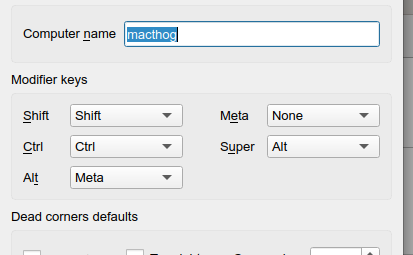
Set this up to use ubuntu server synergy.
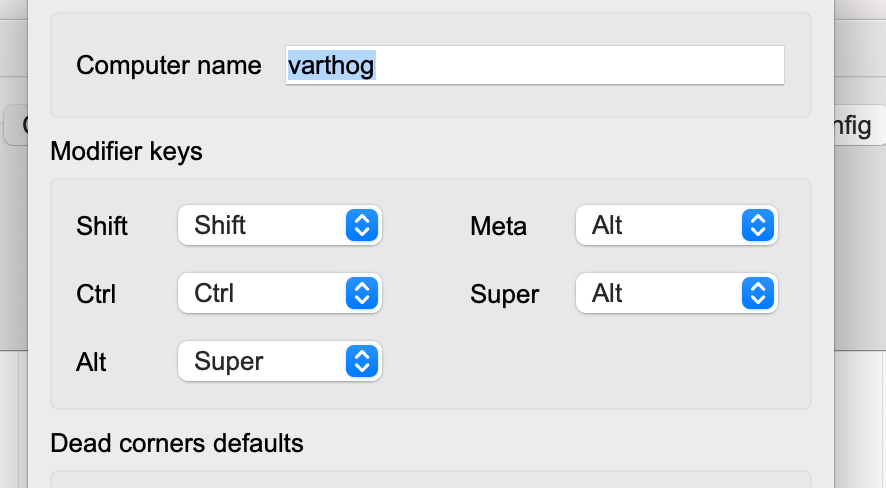
Otherwise, use this
Linux Set Up
Partition:
- Swap 8GB
- boot/efi 2/3GB, FAT32, primary
/about 2/5 of the rest, ext4, logical- ‘/home’ about 3/5 of the rest, ext4, logical
1
systemctl reboot --firmware-setup
1
2
3
4
5
6
7
8
9
10
11
12
13
14
15
16
17
18
19
20
21
22
23
24
25
26
27
28
29
30
31
32
33
34
35
36
37
38
39
40
41
42
43
44
45
46
47
48
49
50
51
52
53
54
55
56
57
58
59
60
61
62
63
64
65
66
67
68
69
70
71
72
73
74
75
76
77
78
79
80
81
82
83
84
85
86
87
88
89
90
91
92
93
94
95
96
97
98
99
100
101
102
103
104
105
106
107
108
109
110
111
112
113
114
115
116
117
118
119
120
121
122
123
124
125
126
127
128
129
130
131
132
133
134
135
136
# ~/.bashrc: executed by bash(1) for non-login shells.
# see /usr/share/doc/bash/examples/startup-files (in the package bash-doc)
# for examples

# If not running interactively, don't do anything
case $- in
    *i*) ;;
      *) return;;
esac

# don't put duplicate lines or lines starting with space in the history.
# See bash(1) for more options
HISTCONTROL=ignoreboth

# append to the history file, don't overwrite it
shopt -s histappend

# for setting history length see HISTSIZE and HISTFILESIZE in bash(1)
HISTSIZE=1000
HISTFILESIZE=2000

# check the window size after each command and, if necessary,
# update the values of LINES and COLUMNS.
shopt -s checkwinsize

# If set, the pattern "**" used in a pathname expansion context will
# match all files and zero or more directories and subdirectories.
#shopt -s globstar

# make less more friendly for non-text input files, see lesspipe(1)
[ -x /usr/bin/lesspipe ] && eval "$(SHELL=/bin/sh lesspipe)"

# set variable identifying the chroot you work in (used in the prompt below)
if [ -z "${debian_chroot:-}" ] && [ -r /etc/debian_chroot ]; then
    debian_chroot=$(cat /etc/debian_chroot)
fi

# set a fancy prompt (non-color, unless we know we "want" color)
case "$TERM" in
    xterm-color|*-256color) color_prompt=yes;;
esac

# uncomment for a colored prompt, if the terminal has the capability; turned
# off by default to not distract the user: the focus in a terminal window
# should be on the output of commands, not on the prompt
#force_color_prompt=yes

if [ -n "$force_color_prompt" ]; then
    if [ -x /usr/bin/tput ] && tput setaf 1 >&/dev/null; then
	# We have color support; assume it's compliant with Ecma-48
	# (ISO/IEC-6429). (Lack of such support is extremely rare, and such
	# a case would tend to support setf rather than setaf.)
	color_prompt=yes
    else
	color_prompt=
    fi
fi

if [ "$color_prompt" = yes ]; then
    PS1='${debian_chroot:+($debian_chroot)}\[\033[01;32m\]\u@\h\[\033[00m\]:\[\033[01;34m\]\w\[\033[00m\]\$ '
else
    PS1='${debian_chroot:+($debian_chroot)}\u@\h:\w\$ '
fi
unset color_prompt force_color_prompt

# If this is an xterm set the title to user@host:dir
case "$TERM" in
xterm*|rxvt*)
    PS1="\[\e]0;${debian_chroot:+($debian_chroot)}\u@\h: \w\a\]$PS1"
    ;;
*)
    ;;
esac

# enable color support of ls and also add handy aliases
if [ -x /usr/bin/dircolors ]; then
    test -r ~/.dircolors && eval "$(dircolors -b ~/.dircolors)" || eval "$(dircolors -b)"
    alias ls='ls --color=auto'
    #alias dir='dir --color=auto'
    #alias vdir='vdir --color=auto'

    alias grep='grep --color=auto'
    alias fgrep='fgrep --color=auto'
    alias egrep='egrep --color=auto'
fi

# colored GCC warnings and errors
#export GCC_COLORS='error=01;31:warning=01;35:note=01;36:caret=01;32:locus=01:quote=01'

# some more ls aliases
alias ll='ls -alF'
alias la='ls -A'
alias l='ls -CF'

# Add an "alert" alias for long running commands.  Use like so:
#   sleep 10; alert
alias alert='notify-send --urgency=low -i "$([ $? = 0 ] && echo terminal || echo error)" "$(history|tail -n1|sed -e '\''s/^\s*[0-9]\+\s*//;s/[;&|]\s*alert$//'\'')"'

# Alias definitions.
# You may want to put all your additions into a separate file like
# ~/.bash_aliases, instead of adding them here directly.
# See /usr/share/doc/bash-doc/examples in the bash-doc package.

if [ -f ~/.bash_aliases ]; then
    . ~/.bash_aliases
fi

# enable programmable completion features (you don't need to enable
# this, if it's already enabled in /etc/bash.bashrc and /etc/profile
# sources /etc/bash.bashrc).
if ! shopt -oq posix; then
  if [ -f /usr/share/bash-completion/bash_completion ]; then
    . /usr/share/bash-completion/bash_completion
  elif [ -f /etc/bash_completion ]; then
    . /etc/bash_completion
  fi
fi

export NVM_DIR="$HOME/.nvm"
[ -s "$NVM_DIR/nvm.sh" ] && \. "$NVM_DIR/nvm.sh"  # This loads nvm
[ -s "$NVM_DIR/bash_completion" ] && \. "$NVM_DIR/bash_completion"  # This loads nvm bash_completion

runcpp() {
   (ulimit -v 4194304; ulimit -s 4194304; ./$1)
}

alias localip="hostname -I | awk '{print $1}'"
alias pdflatex="miktex-pdftex"
alias bibtex="miktex-bibtex"
___MY_VMOPTIONS_SHELL_FILE="${HOME}/.jetbrains.vmoptions.sh"; if [ -f "${___MY_VMOPTIONS_SHELL_FILE}" ]; then . "${___MY_VMOPTIONS_SHELL_FILE}"; fi

alias py="python"
export PATH="$HOME/.rbenv/shims:$PATH"
export PATH="$HOME/.rbenv/bin:$PATH"
eval "$(rbenv init -)"
Set Up Terminal
You can use dconf(1) to dump and load the gnome-terminal profiles. I got the basic command usage from this source:
https://gist.github.com/reavon/0bbe99150810baa5623e5f601aa93afc
To export all of your gnome-terminal profiles from one system, and then load them on another, you would issue the following:
source system:
1
$ dconf dump /org/gnome/terminal/legacy/profiles:/ > gnome-terminal-profiles.dconf
destination system (after transferring the gnome-terminal-profiles.dconf file):
1
$ dconf load /org/gnome/terminal/legacy/profiles:/ < gnome-terminal-profiles.dconf
gnome-terminal-profiles.dconf on my Ubuntu:
1
2
3
4
5
6
7
8
9
[:b1dcc9dd-5262-4d8d-a863-c897e6d979b9]
background-color='rgb(238,238,236)'
cell-width-scale=1.1500000000000001
cursor-shape='ibeam'
font='Comic Mono 11'
foreground-color='rgb(46,52,54)'
use-system-font=false
use-theme-colors=false
visible-name='Hocky'
Probe them here https://linux-hardware.org/
Leave a Comment